Test Google Analytics implementations
Once you have a TrackingPlan, you want to run test cases and check GA events.
This part describes various ways to do that.
Automated testing for GA4 implementations
If you followed Automatic test with Selenium 🚀 tutorial in Getting Started section, you already know how to build full automated tests for GA and GA4 implementations. But at the time of writing this documention, there is no proper GA4 Demo website we know of, so the tutorial above is based on a simple Google Analytics (not GA4) demo website from Google.
This said, you might want to test GAUnit with a real GA4 implementation anyway, and we totally understand that!
Don’t worry, we have built a very simple demo website with GA4 implementation and we provide you with a full working GAUnit example:
Demo website: https://vincecabs.github.io/ga4_with_gtag_js/
full working example on Github: https://github.com/VinceCabs/GAUnit/blob/master/examples/auto_test_with_proxy_ga4/
Note
As said just above, except for events parameters which are different, there is no difference between GA and GA4 testing with GAUnit. If you are here to learn how to test GA and GA4 implementations, be sure to follow Getting Started tutorial.
Launch a manual browsing session to check events
Sometimes, automating test cases is too much work if you only want to perform a few tests.
What if we could use Python and GAunit to:
open a browser session already set up with a proxy,
manually run the test case (do the browsing yourself instead of Selenium),
when done, let GAUnit check GA events against a tracking plan?
This is possible and here is how to do that!
First, you need to Install Selenium and BrowserMob Proxy.
Create a Python file, name is up to you. Set up a proxy to record network trafic in HAR and create a webdriver using this proxy (same code as in Automatic test with Selenium 🚀):
import gaunit
from browsermobproxy import Server
from selenium import webdriver

# set up proxy
server = Server()  # or add path to binary: 'Server(path="browsermob-proxy")'
server.start()
# 'useEcc' is needed to have decent response time with HTTPS
proxy = server.create_proxy({"useEcc": True})

proxy.new_har("demo_store_add_to_cart", options={"captureContent": True})

options = webdriver.ChromeOptions()
options.add_argument("--proxy-server=%s" % proxy.proxy)
capabilities = webdriver.DesiredCapabilities.CHROME.copy()
capabilities["acceptInsecureCerts"] = True
driver = webdriver.Chrome(options=options, desired_capabilities=capabilities)
But now it gets different from a full automated test case; let’s use a dialog box to pause execution and give hand to the user until he or she says:
from tkinter import messagebox

messagebox.showinfo(
    "Manual browsing mode",
    "Recording network trafic. Browse site, then press 'OK' when you're finished",
)
This code will open a dialog box:
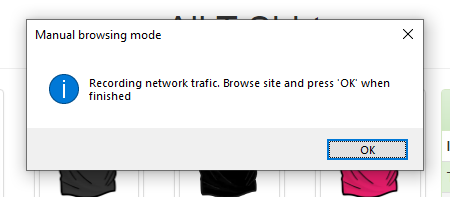
This will give hand to the user and let him browse the website until he or she presses “OK”. All events will be recorded.
Then export har, close all, check events against tracking plan:
# export har and close all
har = proxy.har
server.stop()
driver.quit()

# check events against tracking plan and print results
tracking_plan = gaunit.TrackingPlan.from_json("tracking_plan.json")
r = gaunit.check_har(test_case, tracking_plan, har=har)

r.print_result(display_ok=True)
- Now:
run your script:
python <your python file>Browse your site following your test case scenario
Press “OK”
See test case result!
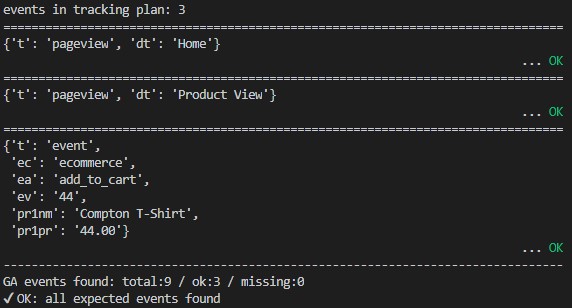
Note
Full source code can be found on Github: GAUnit manual test session