Write a tracking plan
This part describes several methods to create a TrackingPlan.
Bear in mind that what we call a tracking plan here defines the expected events for one or more test cases.
with a JSON file
See Write your tracking plan 📑 from Getting Started section and to see how to create a
tracking_plan.json JSON file.
You can then import the file with these 2 lines of code:
import gaunit

tracking_plan = gaunit.TrackingPlan.from_json("tracking_plan.json")
with Google Sheet
Google Sheets is very convenient to write tracking plans:
they are shareable and easily accessible
they allow collaborative editing
anyone from business teams to business partners can read or contribute
With GAunit, you can import tracking plans from Google Sheets (thanks to gspread). Here is how it works :
Each tab corresponds to a test case
Lines correspond to events
Columns correspond to event parameters
In this Spreadsheet, we import one test case named ga_demo_store_add_to_cart for which we expect 3 events:
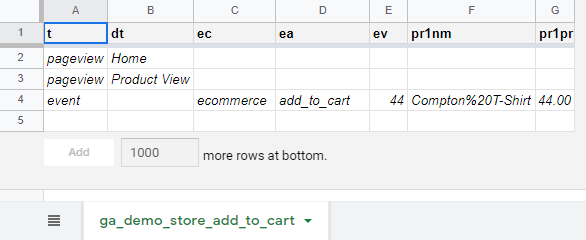
This Spreadsheet publicly is available here
Let’s see how to do that!
Create a Python file where you will import the Google Spreadsheet.
For example, name it demo_store_add_to_cart.py.
First, you need to authenticate with gspread. Have a look at gspread documentation on (authentication) to choose the method that suits you best. In this example, we use Service Account authentication :
import gaunit
import gspread

gc = gspread.service_account(filename="service_account.json")
Note
Authentication with gspread is mandatory, even for public Spreadsheets.
Now, we can open the Spreadsheet and import it with from_spreadsheet() method:
gsheet = gc.open_by_key("1Kd68s3vLrBqtMDW-PaALZF-5bTm-4J450YbJ3NTbZjQ")

tracking_plan = gaunit.TrackingPlan.from_spreadsheet(gsheet)
expected_events = tracking_plan.get_expected_events("ga_demo_store_add_to_cart")
print(expected_events)
# [{'t': 'pageview', 'dt': 'Home'}, {'t': 'pageview', 'dt': 'Product View'}, {'t': 'event', 'ec': 'ecommerce', ..}]
It worked!
Note
Full source code can be found on Github: Tracking Plan from Gsheet sample
With Python
This is very simple. Two methods can help you here:
from_events()which returns aTrackingPlanadd_test_case()which adds a test case to an existing instance ofTrackingPlan
We will see them both. First, write the expected events for your test case
called demo_store_add_to_cart in a list:
expected_events = [
    {
        "t": "pageview",
        "dt": "Home"
    },
    {   "t": "pageview",
        "dt": "Product View"
    },
    {
        "t": "event",
        "ec": "ecommerce",
        "ea": "add_to_cart",
        "ev": "44",
        "pr1nm": "Compton T-Shirt",
        "pr1pr": "44.00",
    }
]
Now, you can create your tracking plan (2 methods):
import gaunit

tracking_plan = gaunit.TrackingPlan.from_events("demo_store_add_to_cart", expected_events)
# or you can do this way:
tracking_plan = gaunit.TrackingPlan()
tracking_plan.add_test_case("demo_store_add_to_cart", expected_events)
You can add as many test cases as you want with the add_test_case() method.